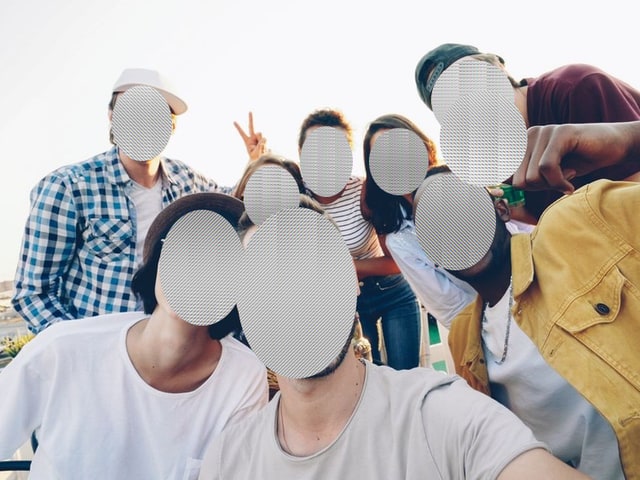
Protect a source without their footage leaving your laptop
When a source agrees to talk but not to be identified, the edit has to be airtight. A cloud blur tool means uploading sensitive footage to someone else’s servers, and a mask that drifts for even a few frames can expose the person you promised to protect. HideFace processes your footage on your own machine and tracks the faces it detects across the whole clip.
Cover everyone, or keep the people who consented and hide the rest. The export is flattened, so there is no removable original layer in the file you publish or hand to an editor. Detection is not guaranteed, so watch the full cut before it leaves your hands.
Cover the people who did not consent, keep the ones on the record
Key facts
Footage is processed on your machine and never uploaded to a third-party server
Tracks each detected face across the whole clip, not just the first frame
Cover everyone, or keep the people who agreed to be on the record
The export is flattened, with no removable original layer in the file
Works on both stills and video
Detection is not guaranteed, so review the full cut before you publish it
How to protect a source in footage
Open the footage on your own machine.
HideFace detects faces and tracks them across the clip.
Keep the people who consented and cover the rest.
Review the full cut, then export it to publish or hand off. Nothing you import is uploaded.
Why local matters here
No upload means no third party holding a copy of sensitive footage.
Frame-by-frame tracking follows a source through the clip instead of covering one frame.
A flattened export leaves no removable original layer once the piece is published.
Detection is not guaranteed, so watch the full cut before you publish it.
Frequently asked questions
Is the footage ever uploaded to a server?
No. The footage you import is processed on your own device with no uploads and no cloud, so it never leaves your computer.
Does the cover hold across the whole clip?
Each detected face is tracked frame by frame, so a source stays covered as they move and the shot changes. Detection is not guaranteed, so watch the full cut before you publish it.
Can I keep on-record people visible and hide the rest?
Yes. Keep the faces that consented and cover everyone else.
Can the cover be reversed from the published file?
The cover is baked into the exported pixels, so there is no removable original layer underneath. For a source who must not be recognizable, use solid coverage or a heavy mosaic rather than a light blur.
Does it also disguise voices?
No. HideFace covers faces; it does not change audio, so handle voice protection separately if a source needs it.
 Download